
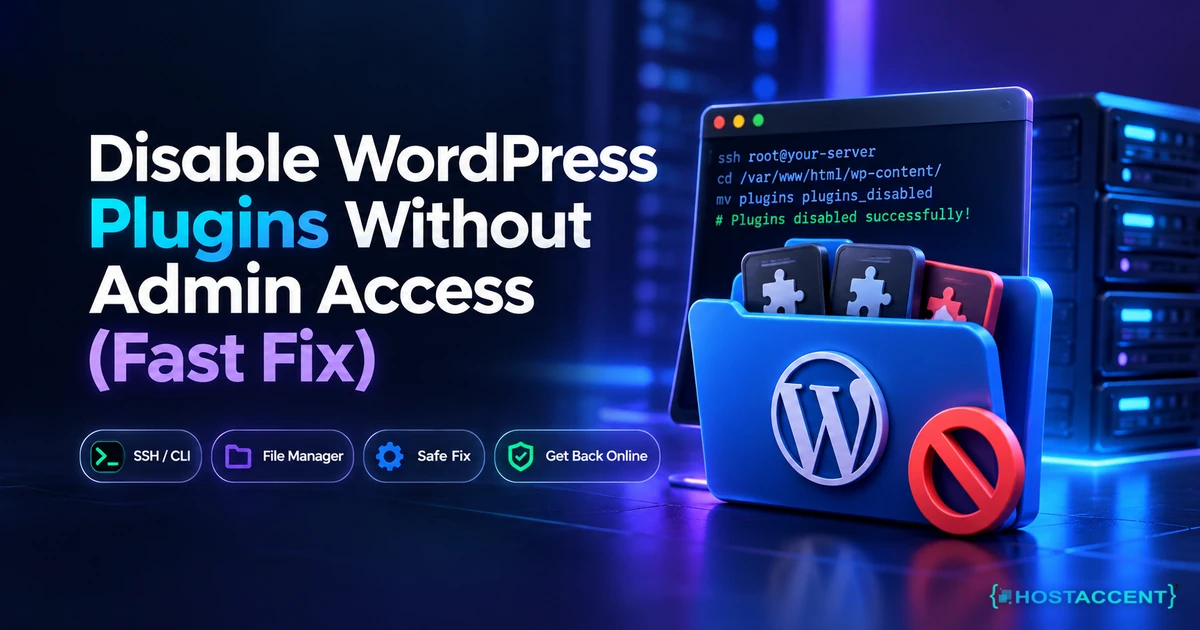
White screen. Redirect loop. Or that flat grey line of text: "There has been a critical error on this website." You updated one plugin, and now wp-admin is a locked door with your whole site behind it.
Here is the part nobody tells you while you're panicking: you never needed the dashboard to switch plugins off. WordPress decides which plugins load by reading two things, a folder on disk and one row in your database. Change either one from outside, and the plugins stop loading. That's the entire trick.
This guide covers exactly how to disable WordPress plugins without admin access, in the order we actually try them on live client sites, with real file paths and commands.
Quick Answer: To disable WordPress plugins without dashboard access, connect over FTP, SFTP or your host's File Manager, open /wp-content/ and rename the plugins folder to plugins-off. WordPress deactivates everything instantly and you can log back in. To disable one plugin only, rename that single folder inside /wp-content/plugins/ instead. As of September 2026, this still works on every WordPress version.
On the Hostaccent support desk, we work through 20 to 30 client site issues every single day, and a plugin that locked someone out of their own admin area is one of the most common tickets we open. This guide is written from that queue, so you can do it yourself in the next ten minutes without waiting for anyone.
Why a Single Plugin Can Lock You Out of wp-admin
A plugin locks you out because WordPress loads plugin code before it loads the admin screen. If a plugin throws a PHP fatal error, execution stops dead, and every page that depends on that code dies with it, including /wp-admin/. It takes one bad update, one PHP version mismatch, or two plugins fighting over the same hook. Roughly 4 out of 5 lockouts we see start with an update that ran ten minutes earlier.
WordPress keeps a list of which plugins are switched on in a single database row: active_plugins in the wp_options table. On every page load it reads that list, then goes looking for each plugin file inside /wp-content/plugins/. Two conditions have to be true for a plugin to run. It has to be named in the database, and its file has to exist on disk.
Break either condition and the plugin is off. That's why renaming a folder works: WordPress looks for the file, finds nothing, and quietly drops it. Core even has a function built for this, deactivate_plugins(), which runs automatically when it validates plugins it can no longer find.
What you see on screen tells you which route to take:
| Symptom | Most likely cause | Fastest route |
|---|---|---|
| Critical error message on the front end | PHP fatal in one plugin | Recovery mode email, then FTP |
| Blank white screen, no text at all | Fatal error with display off, or memory exhausted | FTP rename |
| wp-admin redirect loop | Plugin overriding site URL or login | Database edit |
| Login page loads, credentials rejected | Security or 2FA plugin misfiring | FTP rename of that one folder |
| 500 error on every page | Fatal error, or a broken .htaccess | FTP rename, then check .htaccess |
If you're staring at a 500 specifically, our 500 Internal Server Error WordPress: Fix It Fast (2026) guide covers the non-plugin causes too, because about a third of those turn out to be file permissions rather than code.
Pro Tip: Before you touch a single file, load
yoursite.com/wp-admin/once even though it will show the error. That request is what makes WordPress notice the fatal on a protected endpoint and email you a recovery link. Loading your homepage does nothing. This one detail is why most people wrongly conclude recovery mode is broken.
Method 1: Disable WordPress Plugins Without Admin Access via FTP or File Manager
This is the method to reach for first, because it takes under 2 minutes and it is completely reversible. Connect over FTP, SFTP or your control panel's File Manager, open /wp-content/, and rename the folder called plugins to plugins-off. Every plugin on the site deactivates at once. Reload wp-admin and you should be back in.
Here is the full sequence.
- Log into your hosting control panel and open File Manager, or connect with an FTP client using your SFTP credentials. If you disable plugins via FTP, use SFTP on port 22 rather than plain FTP on port 21 wherever your host offers it.
- Open your site's document root. On cPanel this is usually
public_html. On a multi-site server it may bedomains/yourdomain.com/public_html. - Open
wp-content. You'll seeplugins,themes,uploads, and possiblymu-plugins. - To kill everything: right-click
plugins, choose Rename, and make itplugins-off. - To kill one suspect only: open
pluginsfirst, find the offending folder (saysome-plugin), and rename that tosome-plugin-off. - Load
yoursite.com/wp-admin/in a fresh browser tab.
When you get back in, WordPress will show a notice that plugins were deactivated because their files could not be found. That message is expected and harmless.
Do I really need to touch the database at all?
Usually not. In the lockouts that reach our queue, the folder rename resolves the majority of them on the first attempt. The database route only becomes necessary when file access is the thing you don't have, or when the plugin has written something into wp_options that keeps breaking the site even after its files are gone.
One warning worth its own line: renaming the whole plugins folder on a site built with a page builder will make your pages render as raw shortcodes until you rename it back. Nothing is lost. It looks alarming and it is not.
Insider Insight: Rename to
plugins-off, neverplugins.oldorplugins.bak. Some backup and security scanners are configured to sweep.oldand.bakpaths, and we have seen a cleanup script delete a client's entire plugin directory that way. A plain hyphen suffix is invisible to those rules.
Method 2: Deactivate All Plugins in the Database With phpMyAdmin
Use this when you have database access but no usable file access, or when a folder rename didn't get you back in. You will edit exactly one value: the option_value of the active_plugins row in wp_options. Setting it to a:0:{} deactivates all plugins in the database in about 30 seconds. Copy the old value somewhere safe first, because that string is your undo button.
Step 1: Find the right database. Open wp-config.php in File Manager and read the DB_NAME value. Sites with several WordPress installs on one account often have four or five databases, and editing the wrong one wastes twenty minutes.
Step 2: Open phpMyAdmin from your control panel and select that database.
Step 3: Open the options table. It is usually wp_options, but the prefix is configurable, so it may be wpxy_options. Match it to the $table_prefix line in wp-config.php.
Step 4: Filter for the row. Use the Filter Rows box and type active_plugins. Click the pencil icon on that row.
Step 5: Save the current value. It looks like this:
basha:3:{i:0;s:19:"akismet/akismet.php";i:1;s:27:"wordfence/wordfence.php";i:2;s:9:"hello.php";}
Paste that into a text file. That is a PHP serialized array, and the number after a: must always match the count of entries inside the braces.
Step 6: Replace it with a:0:{} and save. Or run it as SQL:
sqlUPDATE wp_options SET option_value = 'a:0:{}' WHERE option_name = 'active_plugins';
Now for the trap that catches almost everyone. If you try to remove just one plugin by hand-deleting its entry, you must also correct the count and the string lengths. Delete one entry from an a:3 array and leave it reading a:3, and PHP fails to unserialize the whole thing. WordPress then treats your plugin list as empty or corrupt. Across the 4,000+ sites our team has migrated since 2016, a hand-edited serialized array is the single most common way a "quick database fix" turns into a longer outage. If you only want one plugin gone, rename its folder instead. Use a:0:{} for all, or use files for one.
Live site and no time to experiment? Our engineers fix this exact lockout for a small one-time fee, and you see the exact quote before anyone touches your server. Hosted with Hostaccent? Then a lockout like this is simply covered by support, at no extra cost. Have an engineer fix it
Still working through this server issue?
Send the symptoms, error output, and what you have already tried. We can work with Hostaccent services or infrastructure hosted with another provider.
Method 3: WP-CLI and Recovery Mode, the Two Routes Most Guides Skip
If you have SSH access, skip both methods above. WP-CLI deactivates plugins properly, running their deactivation hooks, in one command that takes about 3 seconds. And if you're on WordPress 5.2 or newer, core has a built-in escape hatch that most articles mention in one line and then never explain.
The WP-CLI route. From your site's root directory over SSH:
bashwp plugin list --status=active wp plugin deactivate --all
To bring back just the ones you trust:
bashwp plugin activate akismet wordfence
Two flags worth knowing. Add --skip-plugins if the fatal error is severe enough that WP-CLI itself crashes while bootstrapping, which forces it to load WordPress without any plugin code. Add --allow-root only if you are genuinely running as root, which you should avoid on a shared box.
The recovery mode route. Since WordPress 5.2, a PHP fatal triggers an email to your site admin address containing a one-time link that logs you into wp-admin with the broken extension paused rather than active. The official core announcement on fatal error recovery documents how the handler decides what to pause.
Three things determine whether it works for you, and they are the reason it so often seems not to:
- The email only fires when the fatal happens on a protected endpoint, meaning
/wp-admin/orwp-login.php. Front-end visits send nothing. - It goes to the address in Settings, General, which is frequently an old address nobody reads any more.
- Recovery mode does not run on WordPress multisite at all.
If the email never arrives, your site's outgoing mail is probably the real culprit rather than recovery mode. That is worth fixing on its own, and our guide on WordPress emails going to spam covers the SPF and DKIM records that usually fix it. You can also force the door manually by visiting yoursite.com/wp-login.php?action=enter_recovery_mode.
From the ticket queue: Hostaccent's support queue in a typical month breaks down as WordPress issues 30%, brute-force and malware 25%, Linux server issues 25%, and SSL problems 20%. Plugin lockouts sit squarely inside that first 30%, which is why we have this sequence memorised.
The Half-Split Rename: Finding the Guilty Plugin in Minutes
Turning everything off gets you back in. It does not tell you what broke the site. Most guides tell you to reactivate one plugin at a time, and with 24 plugins installed that means up to 24 page loads. There is a faster way we use on client sites, and it takes about 5 steps instead of 24.
We call it the Half-Split Rename, and it is a binary search applied to your plugins folder.
- Rename
pluginsback to its real name so every folder is visible again, but leave the plugins deactivated. - Create a folder called
plugins-holdinginside/wp-content/. - Move half your plugin folders into
plugins-holding. With 24 plugins, that is 12 moved and 12 left. - Reactivate the 12 that remain. Site loads fine? The culprit is in the holding folder. Site breaks? The culprit is in the active half.
- Take whichever half contains the problem, split that in half again, and repeat.
With 24 plugins you find the guilty one in 5 rounds rather than 24. With 64 plugins it is 6 rounds. The maths is the same reason a dictionary lookup doesn't start at page one.
Rename Plugins Folder, phpMyAdmin, or WP-CLI?
| Method | Access needed | Disables | Reversible | Typical time |
|---|---|---|---|---|
| Rename plugins folder | FTP, SFTP or File Manager | All, or one | Yes, instantly | 1 to 2 minutes |
| phpMyAdmin a:0:{} | Database access | All only | Yes, if you saved the value | 3 to 5 minutes |
| WP-CLI | SSH | All, or named ones | Yes | Under 1 minute |
| Recovery mode | Access to admin email | Only the crashing one | Automatic | 2 minutes, if email arrives |
Once you find the offender, resist the urge to just delete it. Check its changelog first. If a plugin broke on PHP 8.3 and the developer shipped a patch two days later, updating fixes it without you losing configuration you spent a weekend building.
Pro Tip: If the site breaks again the moment you reactivate plugins, and no single plugin is at fault, you are probably out of PHP memory rather than facing a plugin conflict. Add
define('WP_MEMORY_LIMIT', '256M');towp-config.phpand try again. Our guide on shared hosting resource limits explains how to read your actual limits before you go hunting for a bug that is not there.
Confirm the Fix, Then Stop It Happening Again
You have genuinely fixed it when three things are true: the front end loads, /wp-admin/ loads, and your error log records no new PHP fatal entries for at least 15 minutes of real traffic. Two out of three is not a fix. Check the log at /wp-content/debug.log or in your control panel's error log viewer before you call it done.
To enable logging while you test, add this to wp-config.php above the "stop editing" line:
phpdefine('WP_DEBUG', true); define('WP_DEBUG_LOG', true); define('WP_DEBUG_DISPLAY', false);
That last line matters. It sends errors to the log file instead of printing them on your live pages where visitors can read your file paths. Set WP_DEBUG back to false when you're finished.
Then close the door behind you. Four habits prevent the vast majority of repeat lockouts:
Update on staging, not live. If your host gives you a one-click staging site, use it. Ten minutes of testing beats an evening of database editing. The official WordPress documentation has more on maintaining a site safely.
Keep a working FTP or SSH credential saved before you need it. When you cannot access wp-admin at 11pm, hunting for a password you set in 2023 costs more time than the actual fix.
Prune what you don't use. Every deactivated plugin sitting in that folder is still a security liability and still shows up in your update queue. If you haven't switched it on in six months, delete it. Fewer plugins also means faster pages, which matters more than most owners expect. Our WordPress site slow diagnosis guide and the walkthrough on fixing high TTFB in WordPress both trace back to plugin bloat more often than to hosting.
Set the admin email to one you actually read. That is the address recovery mode uses. An unread address turns a 2-minute recovery into a 40-minute file dive.
Honest caveat worth stating: none of this protects you from a plugin that corrupts data rather than crashing PHP. For that, the only real insurance is a backup you have tested restoring. Backups you have never restored are a hypothesis, not a safety net.
Your Next Step After Getting Back In
You now know that a locked dashboard is a filesystem or database problem, not a lost site. If you fixed it yourself, do one thing before closing the tab: turn on automatic daily backups, so the next rollback takes 30 seconds.
Worth saying plainly: on a properly managed host, needing to disable WordPress plugins without admin access is support's job, not yours. Start on the Economy plan at $1.99/mo, which renews at $1.99/mo, on NVMe SSD storage with free SSL, a 99.99% uptime guarantee and a 30-day money-back guarantee. One honest caveat: it's sized for a single site, so if you run several client projects, Standard at $4.58/mo fits better.
Still stuck? Open a ticket with Hostaccent and an engineer takes it from here, for a small one-time fee, with the exact quote shown before any work begins.
Frequently Asked Questions
Is it safe to disable WordPress plugins without admin access?
Yes, when you use the file method. Renaming a plugin folder over FTP or File Manager changes nothing inside your database and nothing inside the plugin itself, so it is fully reversible by renaming the folder back. The database method carries real risk, because a mistyped serialized array in wp_options can corrupt your plugin list. Always copy the original value out before you edit it.
Will renaming the plugins folder delete my plugin settings?
No. Plugin settings live in your database, in the wp_options table and often in custom tables, not in the plugin folder itself. Renaming the folder only stops WordPress from finding and loading the code. When you rename it back and reactivate, your settings are exactly where you left them. The one exception is deleting a plugin through the dashboard, which some plugins treat as permission to wipe their own data.
How do I deactivate all plugins in the database with phpMyAdmin?
Open phpMyAdmin from your control panel, select the database named in wp-config.php, and open the wp_options table. Filter the rows for active_plugins, click the edit pencil, copy the existing serialized value into a text file for safekeeping, then replace it with a:0:{} and save. Every plugin deactivates immediately. Paste the saved value back to restore your original plugin list.
Why didn't I get the WordPress recovery mode email?
Three common reasons. First, recovery mode only triggers when the fatal error occurs on /wp-admin/ or wp-login.php, so a homepage visit sends nothing. Second, it goes to the address in Settings, General, which is often an old one. Third, it does not run on multisite at all. If none of those apply, your site's outgoing mail is likely failing, which is a separate fix worth making.
How do I find which plugin broke my site?
Reactivate in halves rather than one by one. Move half your plugin folders out of /wp-content/plugins/ into a holding folder, reactivate the remaining half, and see which group contains the fault. Split that group in half again and repeat. With 24 plugins this finds the culprit in roughly 5 checks instead of 24. Check the offending plugin's changelog before deleting it.
What if the site still won't load after disabling every plugin?
Then plugins were never the cause. Switch to a default theme by renaming your active theme folder, which forces WordPress to fall back to a core theme. If that fails too, check for a corrupt .htaccess, an exhausted PHP memory limit, or a database connection error in wp-config.php. The engineers on the Hostaccent desk clear these daily, and a corrupted .htaccess is by far the most frequent of the three.




Discussion
Have a question or tip about this topic? Share it below — your comment will appear after review.